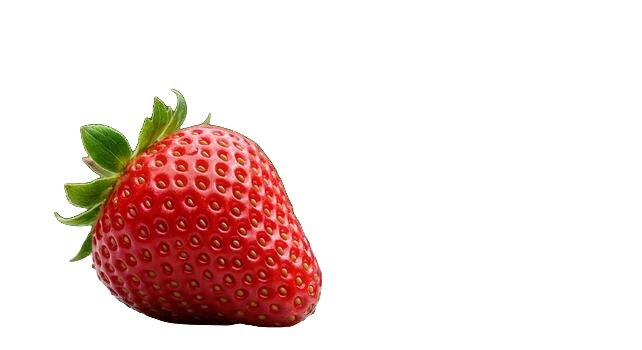
Come Rimuovere lo Sfondo da Qualsiasi Immagine Online Gratis
Guida passo passo per rimuovere gli sfondi dalle immagini istantaneamente usando strumenti gratuiti basati sull'IA. Nessuna installazione software necessaria.
Di nobackground team · Ultimo aggiornamento 10 marzo 2026
Rimuovere lo sfondo da un'immagine richiedeva software costosi come Photoshop e ore di meticoloso lavoro manuale. Oggi, gli strumenti basati sull'IA hanno reso possibile per chiunque ottenere risultati professionali e puliti in pochi secondi - completamente gratis e senza installare nulla.
Perché Rimuovere gli Sfondi dalle Immagini?
Uno sfondo pulito e trasparente rende le tue immagini versatili. Puoi posizionare i prodotti su qualsiasi sfondo per il tuo negozio online, creare foto profilo professionali, progettare materiali di marketing o preparare immagini per presentazioni. La rimozione dello sfondo è una delle attività di editing più comuni per aziende e privati.
Passo dopo Passo: Rimuovere lo Sfondo Online
Passo 1: Carica la tua immagine. Vai allo strumento di rimozione sfondo e trascina e rilascia la tua immagine o clicca per cercare. I formati supportati includono PNG, JPG e WEBP fino a 10 MB.
Passo 2: Attendi l'elaborazione dell'IA. Il modello IA analizza la tua immagine, identifica il soggetto e rimuove automaticamente lo sfondo. Questo richiede generalmente solo pochi secondi. Alla tua prima visita, il modello IA verrà scaricato nel tuo browser e memorizzato nella cache per uso futuro.
Passo 3: Anteprima e download. Confronta l'originale con il risultato usando la vista affiancata o il cursore interattivo. Quando sei soddisfatto, clicca Scarica PNG per salvare la tua immagine trasparente.
Consigli per i Migliori Risultati
- Usa immagini ad alta risoluzione con buona illuminazione per risultati più nitidi.
- Le immagini con forte contrasto tra soggetto e sfondo producono bordi più puliti.
- Ritratti, foto di prodotti e oggetti su sfondi solidi funzionano particolarmente bene.
- Scene complesse con più soggetti sovrapposti possono richiedere qualche sperimentazione.
Privacy e Sicurezza
A differenza di molti strumenti online, il nostro strumento di rimozione sfondo elabora le immagini interamente nel tuo browser utilizzando l'IA sul dispositivo. Le tue immagini non vengono mai caricate su alcun server, rendendolo l'opzione più privata disponibile per la rimozione dello sfondo.
When free online tools beat desktop software
Desktop editors still win for complex compositing, but for the everyday job of isolating a subject and exporting a transparent PNG, a browser tool is usually faster. You skip installers, license prompts, and the learning curve of pen tools. Upload, wait a few seconds, download. That workflow matters when you need ten clean cutouts before lunch, not one perfect mask after an afternoon of zooming into hair strands.
Free online removers also lower the barrier for freelancers and small shops that cannot justify a Creative Cloud seat for a single recurring task. If your week includes marketplace listings, social creatives, and slide decks, you want something that opens in a tab and works on the laptop you already use.
Common failure cases and how to fix them
Even strong models struggle when the subject blends into the backdrop. A white t-shirt on a white wall, a beige product on a beige table, or a glossy bottle reflecting the room can leave soft edges or holes. The fix is usually upstream of the tool: move the subject, change the angle, or add a contrasting sheet behind the product before you shoot.
Hair, fur, and fine jewelry wires are the other classic stress test. Preview at 100% zoom after download. If a few strands look clipped, try a sharper source photo rather than re-running the same soft JPEG. Compression artifacts confuse segmentation more than people expect.
Semi-transparent materials like glass, smoke, or thin mesh will rarely look perfect on the first pass. Treat those as special cases: remove the background for the opaque parts, then touch up transparency in a design tool if the result must be publication-grade.
A practical checklist before you upload
- Prefer the highest-resolution original you have, not a screenshot of a screenshot.
- Crop out large empty regions so the subject fills more of the frame.
- Avoid heavy filters or Instagram-style overlays baked into the file.
- If you need a white marketplace background later, export transparent PNG first, then place it on white in your listing editor.
Once you have a clean transparent PNG from nobackground, you can drop it into Canva, Figma, Shopify, or a slide template without fighting a leftover white box. That reuse is the real payoff of background removal done right.
Privacy note for sensitive photos
ID photos, unreleased product shots, and client work should not travel to unknown servers if you can avoid it. Tools that run the model in your browser keep the pixels on your device during processing. That does not replace good judgment about what you share publicly after download, but it does remove an unnecessary upload step from the pipeline.
What to do after you download
Transparent PNG is the flexible master file. From there you can place the subject on pure white for Amazon, on brand color for a landing page, or on a lifestyle scene for ads. Keep the transparent version in your asset library so you never re-cut the same photo when a campaign palette changes.
Choosing between white background and transparent PNG
Marketplace main images often require pure white. Marketing sites and design tools prefer transparency. The efficient path is always the same: create a transparent master first, then generate the white variant by placing the PNG on a #FFFFFF canvas. Doing it in that order means you never re-cut the subject when a channel changes its backdrop rules.
If a tool only offers “white background” as the export, you lose reuse. Prefer workflows that give you alpha. Then decide the finish per destination.
Pronto a provarlo tu stesso?
Rimuovi gli sfondi dalle tue immagini gratuitamente - nessuna registrazione necessaria.
Prova nobackground Gratis