
Cómo Crear Imágenes PNG Transparentes Para Cualquier Proyecto
Guía completa para crear y usar imágenes PNG transparentes para proyectos de diseño, web, presentaciones e impresión.
Por Ahmet C. Toplutaş · Última actualización 11 de octubre de 2026 · Normas editoriales
En este sitio
Abre la herramienta. Sujeto ejecuta el modelo en el navegador. Color del borde quita solo el color que toca el borde exterior y deja las zonas interiores de ese color. La primera ejecución de Sujeto descarga el modelo. El tiempo depende del dispositivo. Revisa la transparencia en el damero y después en blanco, negro o un color propio. Descarga un PNG transparente como archivo maestro. El PNG plano o el JPEG solo después de elegir un color sólido. El JPEG no guarda transparencia. El pelo, el cristal, las cadenas finas y el bajo contraste pueden fallar.

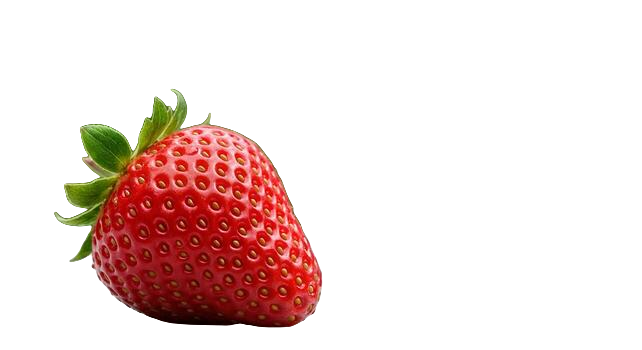
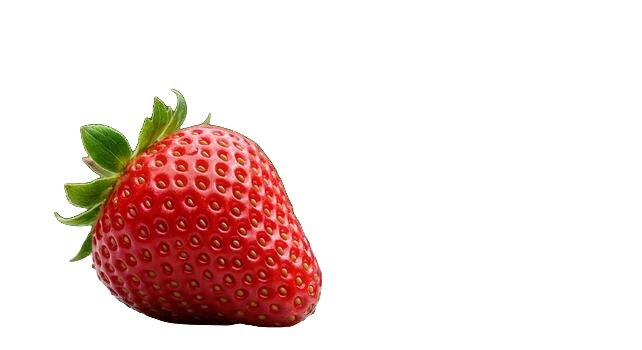

Las imágenes PNG transparentes son esenciales en diseño, desarrollo web y creación de contenido. Ya sea que estés construyendo un sitio web, creando una presentación o diseñando materiales de marketing, los fondos transparentes te dan la flexibilidad de superponer imágenes sin problemas en cualquier proyecto.
¿Qué Es un PNG Transparente?
PNG (Portable Network Graphics) es un formato de imagen que admite transparencia a través de un canal alfa. A diferencia de JPEG, que siempre tiene un fondo sólido, PNG puede almacenar información de transparencia por píxel. Esto significa que puedes tener una imagen de una persona, producto u objeto sin fondo - solo el sujeto rodeado de transparencia.
Usos Comunes de PNGs Transparentes
- Diseño web: Logos, iconos e imágenes de productos que necesitan situarse sobre cualquier color o patrón de fondo.
- Presentaciones: Imágenes que se integran limpiamente en las diapositivas sin un feo cuadro blanco alrededor.
- Redes sociales: Superposiciones, stickers y gráficos que se integran con tus publicaciones e historias.
- Diseño de impresión: Elementos para folletos, trípticos y pósters que necesitan superponerse sobre otro contenido.
- Video: Superposiciones y tercios inferiores que necesitan fondos transparentes para composición.
Cómo Crear un PNG Transparente
La forma más rápida es usar una herramienta de eliminación de fondos con IA. Sube cualquier imagen - ya sea una foto, captura de pantalla o gráfico - y la IA aislará el sujeto y producirá un PNG transparente en segundos. Sin necesidad de Photoshop ni habilidades de diseño.
Para imágenes existentes con fondos de color sólido, también puedes usar las herramientas de "varita mágica" o "seleccionar color" en editores de imágenes para eliminar el fondo manualmente. Sin embargo, las herramientas de IA manejan bordes complejos (como cabello y objetos detallados) mucho mejor y más rápido.
Consejos Para Trabajar con PNGs Transparentes
Ten en cuenta que los PNGs transparentes son archivos más grandes que los JPEGs. Para uso web, optimiza tus PNGs con herramientas de compresión para mantener los tiempos de carga rápidos. Al compartir imágenes transparentes, siempre usa el formato PNG - guardar como JPEG reemplazará la transparencia con un fondo blanco.
Canales alfa sin dolor de cabeza técnico
La transparencia en PNG se almacena por píxel como un valor alfa. Los píxeles totalmente opacos conservan el color del sujeto; los totalmente transparentes desaparecen y dejan ver lo que haya debajo en la maquetación. El alfa parcial crea bordes suaves, útiles para el pelo y las curvas suavizadas, y peligrosos si el origen era un JPEG de baja calidad que ya había emborronado esos bordes.
Por eso importa exportar como PNG desde un eliminador de fondos. Guardar el mismo resultado como JPEG aplana el alfa en un color sólido (normalmente blanco) y deshace el trabajo. WebP también admite alfa, pero PNG sigue siendo el formato más seguro para entregar a marketplaces, imprentas y herramientas de diseño antiguas.
Dónde fallan los PNG transparentes en la práctica
- Clientes de correo: algunos eliminan o ignoran la transparencia; pruébalo sobre una celda con color de marca.
- Subidas a redes sociales: las plataformas pueden recomprimir e introducir un fondo; conserva un maestro de respaldo.
- Software RIP de impresión: confirma si la imprenta espera PNG con alfa o prefiere un PDF aplanado con el fondo previsto.
- Cadenas de imagen de CMS: los conversores automáticos a veces fuerzan JPEG; desactívalo para logotipos y recortes.
Lista de calidad después de exportar
Abre el PNG sobre un damero oscuro y otro claro (o simplemente cambia el color de fondo de la página). Los halos aparecen como un borde claro sobre oscuro y como manchas oscuras sobre claro. Los halos suaves suelen venir de la compresión de la foto original; reexportar desde una fuente mejor supera cualquier suavizado interminable en un editor.
El tamaño de archivo puede dispararse en fotos de producto grandes. Si una landing va pesada, guarda el maestro transparente a resolución completa y sirve a los visitantes un PNG o WebP redimensionado. No recomprimas el maestro en un JPEG diminuto "por comodidad".
De la foto al activo reutilizable
Usa el creador de fondo transparente cuando necesites un recorte rápido y guarda después el PNG junto al RAW o al JPEG original en tu gestor de activos o carpeta de Drive. Nómbralo con claridad (sku-123-recorte.png) para que nadie del equipo vuelva a recortar la misma toma seis meses después.
Quien trabaje en Figma o Canva debería colocar el PNG en un marco que coincida con el recorte final y duplicar variantes para interfaces en modo claro y oscuro. Un único maestro con alfa limpio evita el problema de las máscaras "casi iguales pero ligeramente distintas" que se cuela en los kits de marca.
Cuándo no forzar la transparencia
Las fotos de estilo de vida a sangre, los fondos con textura que forman parte del relato y las capturas de interfaces ya diseñadas sobre un lienzo concreto rara vez ganan algo con un recorte. Elimina fondos cuando el sujeto tenga que viajar entre contextos (producto, persona, logotipo, icono), no cuando el entorno sea el mensaje.
Gestión del color y matices inesperados
A veces un PNG se ve perfecto en la vista previa del navegador y adquiere un velo claro en otra aplicación. Eso suele venir de una conversión de perfil de color o de colocar el archivo en una capa con un modo de fusión incorrecto. Aplana únicamente en la exportación final del canal que necesita fondo sólido y deja intacto el maestro con alfa.
Si tienes que enviar por correo un archivo transparente a un cliente que no abre bien el alfa de un PNG, manda un ZIP con el PNG más una comparativa en JPEG sobre gris y sobre el color de marca, para que entienda la intención aunque su cliente de correo falle.
¿Listo para probarlo tú mismo?
Elimina fondos de tus imágenes gratis - sin necesidad de registro.
Prueba nobackground Gratis